
Desktop app
Your files and the assistant, on your desktop.
Ask it to find, sort, rename or de-duplicate files, in your workspace and in folders on this computer. Open anything in the app it belongs to, even offline.
v1.2.1 · Free with any The Drive AI account. macOS 12 or later; Windows 10 or later from the Microsoft Store.

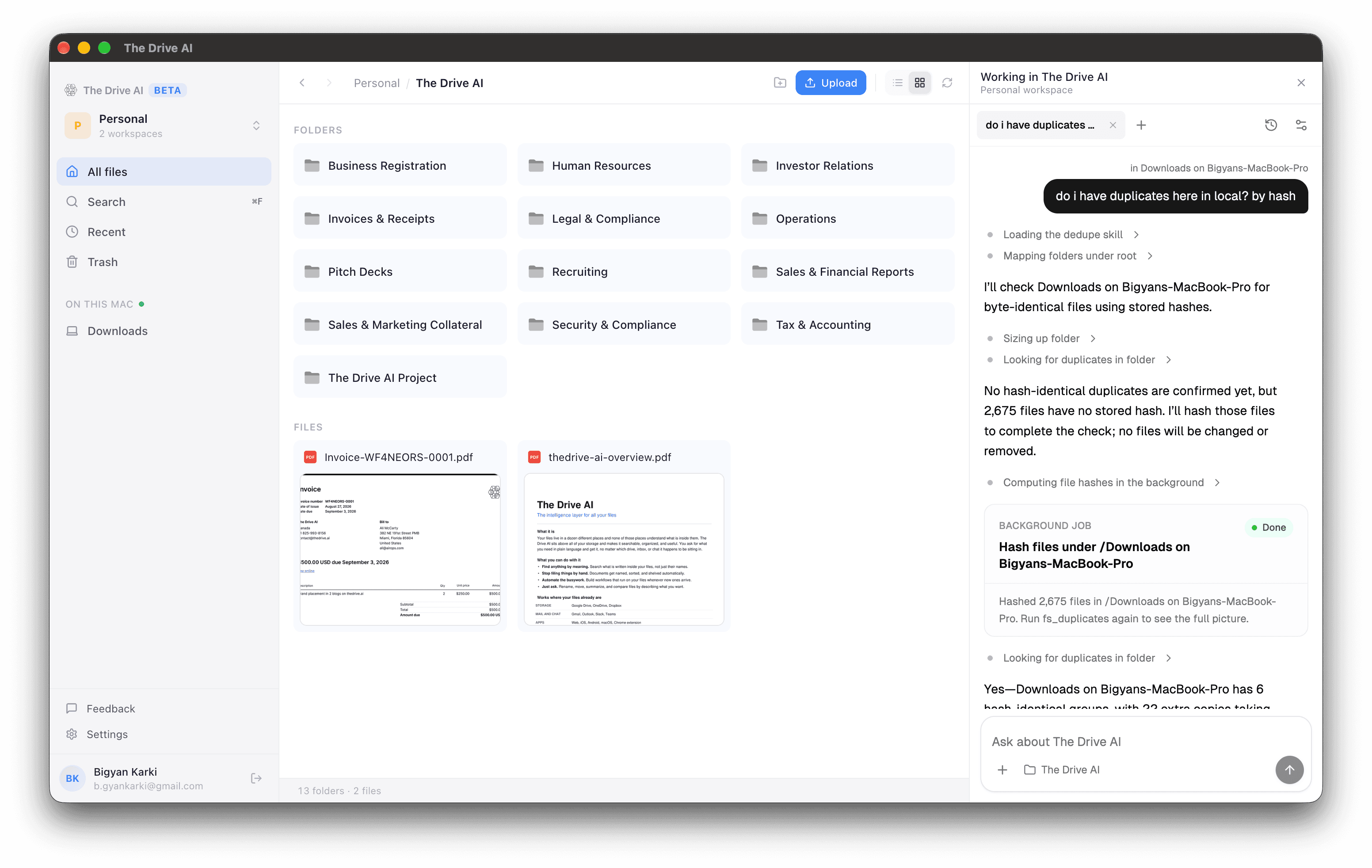
The assistant
Ask, and it does the filing.
The assistant opens beside your files and works in the folder you are looking at. Bigger changes come back as a plan you approve, and moves and renames can be undone.
do i have duplicates in Downloads? by hash
Finds byte-identical copies and lists each group with the space it would free. Nothing is removed until you say so.
sort Downloads into folders by type and year
Shows the new folders and every move before making them. Undo puts the files back.
rename the receipts in this folder to vendor, date and amount
Reads each receipt, scans included, and proposes the new names.
copy the signed contracts here to Legal in Google Drive
Copies between this computer, your workspace and the drives you connected.
what changed in Tax & Accounting this week?
Answers from your whole workspace, not only the files on this machine.
Folders on this computer
Organize Downloads without uploading it.
Share a folder with the assistant from Settings, and it can sort, rename and clean it up where it sits. Sharing folders comes with the Max plan or any Team plan.
Files stay on your computer
The assistant reads a file only when a task needs it. Nothing is copied into your workspace unless you ask.
You choose what it sees
Per folder, let it read documents, or only see file names and dates.
Ask from Finder
On a Mac, right-click a folder and choose Quick Actions › Ask The Drive AI about this folder.
On your desktop
Your workspace, without a browser tab.
Open in the right app
Double-click to open a file in Word, Excel, Preview or whatever you already use.
Offline copies
Make a file or folder available offline and open it with no connection.
Back up a folder
Pick a folder, and new or changed files upload to your workspace in the background.
Always current
Changes made on the web, on your phone or by a teammate show up here right away.
Search and recent
One search box for the whole workspace, and a list of what changed lately.
Every workspace
Switch between personal and team workspaces without signing in again.
Built into Finder
Sync badges, Add to The Drive AI and Open in The Drive AI, on a Mac.
Menu bar and tray
See sync status, and pause or resume it, without opening the app.
FAQ
Questions answered
Which platforms are supported?
Mac (Apple Silicon and Intel, macOS 12 or later) and Windows (Windows 10 or later, from the Microsoft Store). Your workspace syncs across desktop, mobile, and web.
How does offline mode work?
Right-click any file or folder and choose "Make available offline." The app keeps a local copy you can open with no connection, and refreshes it when the file changes and you are back online.
Can I back up a folder from my computer?
Yes. Pick a folder in Settings and the app uploads new and changed files to your workspace in the background. You can pause and resume from the menu bar or system tray.
Does it replace Finder or File Explorer?
No. The app works alongside your native file manager. Files open in your default applications — Word, Excel, Photoshop, whatever you already use.
Is my data stored locally?
Only files you explicitly mark for offline access are stored locally. Everything else streams on demand. All data is encrypted in transit and at rest.
Can the assistant work on files that stay on my computer?
Yes. Share a folder with the assistant from Settings › Agent in the app. The files stay on your computer; the assistant keeps a catalogue of them and reads a file only when a task needs it. You choose per folder whether it may read documents or only see names and dates. Sharing folders comes with the Max plan or any Team plan.
What if the assistant moves or deletes the wrong thing?
Moves and renames can be undone from the conversation. Files it deletes on your computer go to the Trash or Recycle Bin, and you restore them from there.
Is the desktop app free?
Yes. The desktop app is free to download and use with any The Drive AI plan. Premium features like extra storage are available with a paid plan.